

Is your Ford F350 radio frozen or stuck on a black screen? Many Super Duty owners face glitches with SYNC 3 or SYNC 4 systems between 2015 and 2024. A simple button combination often fixes these software hiccups instantly without losing your data.
This guide explains exactly how to reset Ford F350 radio units using soft reboots and fuse removal methods. You will learn specific steps to restore audio, fix Bluetooth issues, and diagnose deeper hardware problems quickly.
Perform a Soft Reset on SYNC Systems
A soft reset is your best first step for fixing minor glitches like laggy screens or audio dropouts. This process reboots the operating system while keeping all your saved settings and paired devices intact. It usually takes less than a minute to complete and requires no tools.
Use Faceplate Buttons for Quick Reboot
The most effective method involves holding two specific buttons on the radio face simultaneously. This works on nearly all 2015–2024 F-350 trucks equipped with SYNC 3 or SYNC 4.
- Locate the Power button and the Skip Forward (>>) button on your radio.
- Press and hold both buttons down at the exact same time.
- Keep holding them for about 10 seconds until the screen goes black.
- Wait for the Ford logo to appear before releasing the buttons.
- Allow 20 to 30 seconds for the home screen to load fully.
Try Steering Wheel Control Combinations
You can also trigger a system refresh using the steering wheel if the face buttons are unresponsive. This method clears the temporary cache and re-establishes module communication.
- Find the Volume Up, Volume Down, and Right Seek buttons on your wheel.
- Press and hold all three buttons simultaneously.
- Maintain pressure for 5 to 10 seconds until the display turns off.
- Release the buttons and wait roughly 15 seconds for the auto-restart.
Identify Symptoms Needing a Soft Reset
Not every issue requires a full power cycle, but specific signs indicate a soft reset is necessary. Look for these common behaviors before attempting more invasive fixes.
- Touchscreen responds slowly or not at all to taps
- Bluetooth connects but audio cuts out frequently
- Radio stations fail to tune or presets disappear
- Apple CarPlay or Android Auto will not launch
- System gets stuck on the startup logo screen
Note: This process preserves your data. Do not confuse this with a factory reset which erases everything.
Execute a Hard Reset by Removing Fuses

A hard reset is necessary when a soft reboot fails to fix a black screen or boot loop. This method cuts all electrical power to the SYNC module, forcing a complete hardware initialization. You will need access to the driver’s side dashboard fuse box.
Locate Radio and Display Fuses
You must remove two specific fuses to cut power to the audio and display modules effectively. These are located in the fuse panel on the left side of the dashboard.
- 20-Amp Radio Fuse: Powers the main audio receiver and amplifier.
- 15-Amp SYNC Display Fuse: Often labeled as Fuse 15, controls the screen.
Check your owner’s manual for the exact diagram as trim levels may vary slightly.
Step-by-Step Fuse Removal Process
Follow this sequence carefully to ensure the system memory clears completely without damaging components.
- Open the fuse box cover on the driver’s side dashboard.
- Use a fuse puller or needle-nose pliers to extract the 20A Radio fuse.
- Remove the 15A SYNC Display fuse immediately after.
- Wait at least 10 to 15 minutes with both fuses removed.
- Reinsert the 20A fuse first to establish proper power sequencing.
- Insert the 15A fuse next and wait for the Ford logo to appear.
Recognize Issues Requiring Hard Reset
This deeper reset resolves problems that a standard reboot cannot touch. Use this method if your truck exhibits severe system failures.
- Screen remains totally black after driving for several minutes
- System enters a continuous boot loop or restarts constantly
- Soft reset button combination produces no response
- Settings revert unexpectedly or behave erratically
- Error messages state “No Audio Device” or similar hardware faults
Pro Tip: If fuses blow immediately after reinsertion, stop and consult a technician as this indicates a short circuit.
Distinguish Between Software and Hardware Failures
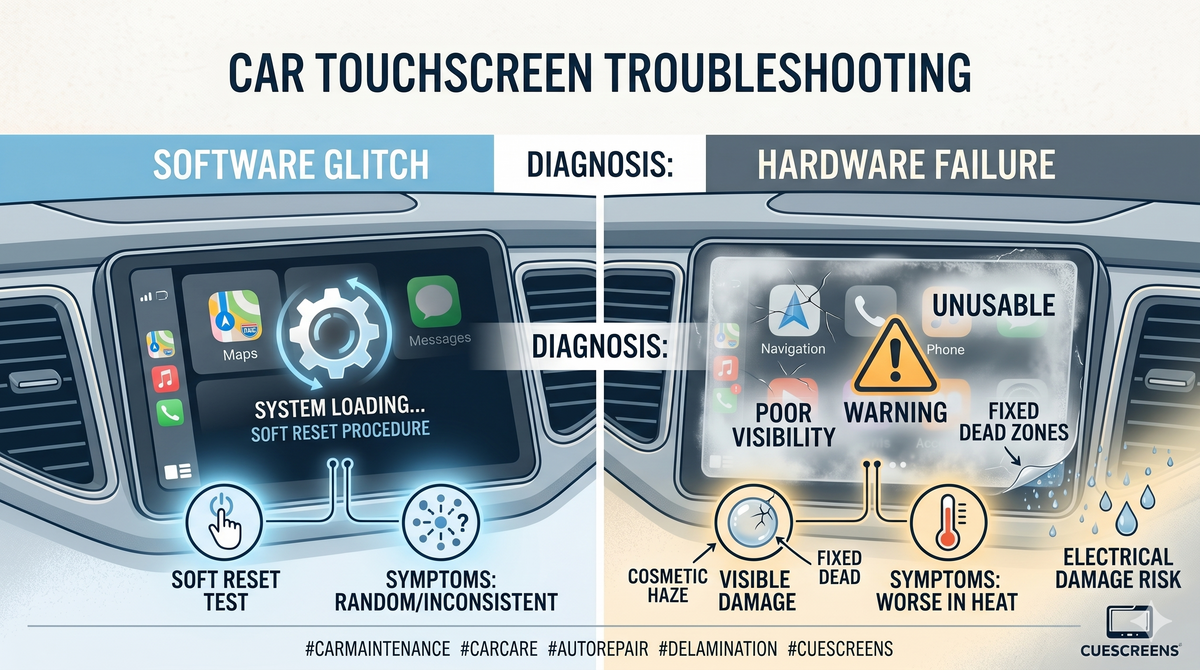
Not every radio problem can be solved with a reset procedure. Understanding the difference between a software glitch and physical damage saves time and money. Use this section to diagnose your specific situation accurately.
Software Glitches Resolved by Resetting
These symptoms suggest the operating system is confused but the hardware is healthy. A soft or hard reset should restore normal function.
- Latency when tapping icons on the touchscreen
- Intermittent loss of voice command recognition
- Navigation maps freezing while audio continues
- Phone lists loading incompletely or showing errors
- Volume controls on the steering wheel working sporadically
Signs of Potential Hardware Damage
If resets do not help, physical components may be at fault. These issues often require professional repair or part replacement.
- Display shows physical cracks or distinct colored lines
- Fuses blow repeatedly upon reinsertion
- No power reaches the radio even with new fuses
- Wires behind the dash appear loose or corroded
- System works briefly after reset then fails again
Warning: Do not attempt to open the head unit yourself if you are unfamiliar with vehicle electronics.
Update SYNC Software to Prevent Glitches
Outdated firmware is a common cause of freezing and connectivity issues. Keeping your system updated ensures you have the latest bug fixes and performance improvements from Ford.
Check Your Current Version
Navigate to Settings then General and select About on your screen. Write down the software version number displayed there. Compare this number against the latest version listed on the official Ford support website.
Install Latest Firmware Updates
You can often update the system yourself using a USB drive. Visit the Ford support site, enter your VIN, and download the update file if available.
- Format a USB drive to FAT32 file system.
- Download the update file from Ford and place it on the drive.
- Insert the USB into your truck’s USB port.
- Follow the on-screen prompts to begin installation.
Caution: Never interrupt a software update once it starts, as this can corrupt the system permanently.
Verify System Functionality After Reset
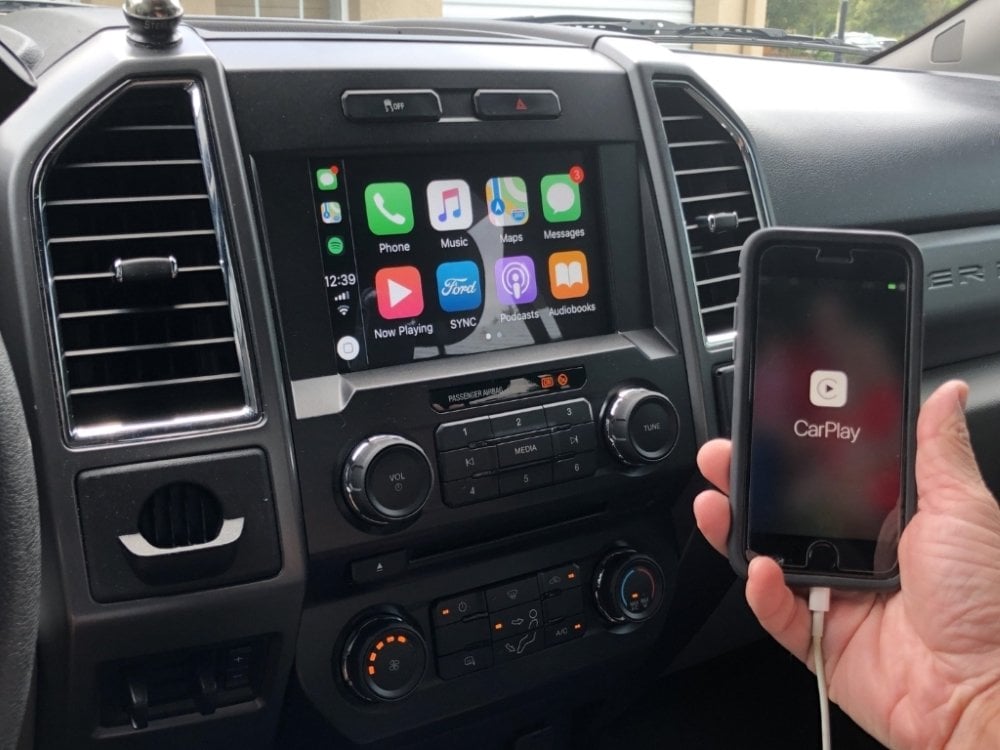
Always confirm that your reset was successful by testing key features immediately. This verification step ensures the problem is fully resolved before you drive away.
- Touch the screen in multiple spots to check responsiveness
- Play AM/FM radio and stream music via Bluetooth
- Launch Apple CarPlay or Android Auto on your phone
- Test steering wheel buttons for volume and track changes
- Open the navigation app to verify GPS signal and sound
If all these functions work normally, your reset was successful. If problems persist, repeat the hard reset or contact a Ford dealer for further diagnosis.
Frequently Asked Questions About Resetting Ford F350 Radio
Will resetting my Ford F350 radio delete my paired phones?
No, a soft reset or hard reset via fuse removal will not delete your data. Your Bluetooth pairings, radio presets, and navigation favorites remain saved. Only a factory reset performed through the settings menu erases this information.
How long should I wait when pulling fuses for a hard reset?
You must wait at least 10 to 15 minutes with the fuses removed. This duration allows the capacitors in the SYNC module to discharge fully, clearing any corrupted memory states causing the glitch.
What if my screen stays black after resetting the radio?
If the screen remains black after both soft and hard resets, check the fuse integrity. If the fuses are good, the issue may be a wiring harness problem or a failed head unit requiring professional repair.
Can I reset the radio while the engine is running?
It is safer to perform resets with the engine off but the ignition in the accessory position. This prevents voltage spikes and ensures the system reboots cleanly without interference from the alternator.
Does this reset method work on Ford F-250 and F-450 models?
Yes, these reset procedures apply to all Ford Super Duty trucks including F-250, F-350, F-450, and F-550 models from 2015 to 2024. The button combinations and fuse locations are generally consistent across these vehicles.
Key Takeaways for Fixing Your Ford F350 Radio
Most radio issues in Ford F-350 trucks stem from temporary software glitches that a simple reset can fix. Start with the soft reset using the Power and Skip Forward buttons before attempting to pull fuses. If the screen remains black or the system loops, the hard reset via fuse removal usually clears the deeper memory errors.
Keep your SYNC software updated to prevent future freezes and connectivity drops. If neither reset method works and fuses are intact, the problem likely involves hardware failure requiring a technician. Use this guide to troubleshoot confidently and get your audio system back on track.


