
Your Ford F-350 engine is running but your phone will not pair with the truck. This common frustration often stems from using the wrong steps for your specific SYNC generation or missing a simple discoverability setting. Thousands of drivers face this exact issue every year due to mismatched passcodes or outdated system knowledge.
This guide provides exact pairing instructions for every Ford F-350 model from 2008 to the present day. You will learn how to identify your specific infotainment system and follow the correct procedure to fix connection errors immediately. We cover everything from legacy Microsoft Sync to the latest Ford Digital Experience without any guesswork.
Identify Your Ford F350 SYNC System Version
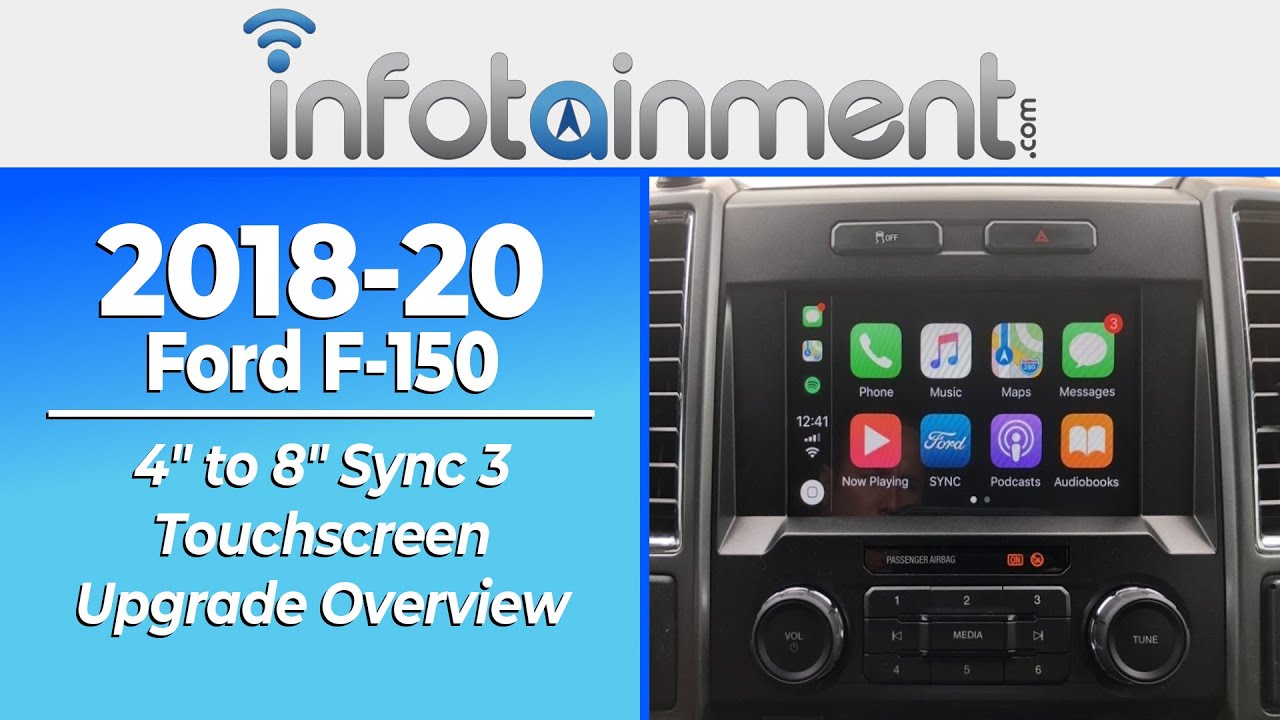
Successful pairing depends entirely on knowing which version of SYNC your truck uses. Procedures vary significantly between model years and using the wrong method causes immediate failure.
Match Model Year to Interface Type
Check your dashboard screen to determine your system generation. Large modern touchscreens indicate SYNC 4 or Ford Digital Experience found in 2020 and newer models. Smaller screens with physical buttons usually mean you have SYNC 3 from 2016 to 2019.
Verify Legacy System Generations
Older trucks from 2010 to 2015 often use MyFord Touch or voice-activated navigation systems. Pre-2010 models typically run the original Microsoft Sync platform. Trucks from 2007 and earlier generally lack Bluetooth support entirely.
Prepare Vehicle and Device for Pairing
Skipping preparation steps causes most Bluetooth connection failures in Ford trucks. A few minutes of setup ensures a smooth process for how to connect Bluetooth to Ford F350 systems.
Park Vehicle With Engine Running
Your vehicle must be parked with the engine running to provide stable power during setup. Some systems allow Accessory mode but a running engine prevents power interruptions. Never attempt this setup while driving as it distracts you and may be disabled in gear.
Enable Phone Discoverability Mode
Go to Settings > Bluetooth on your phone and turn the feature on. Ensure discoverability is active since this setting often times out after three to five minutes. Start the vehicle process only after enabling this feature on your mobile device.
Remove Old Paired Devices
Your F-350 may have reached its pairing limit of five to eight devices. Go to SYNC Settings > Bluetooth > Paired Devices and delete unused phones. This frees up space and prevents conflicts with new connections.
Connect Bluetooth on Ford Digital Experience
Newest F-350 models feature a large modern touchscreen interface known as Ford Digital Experience. Follow these specific steps for 2020 and newer trucks.
Pair First Smartphone Device
- Turn on Bluetooth on your mobile phone.
- Tap Add phone on the home screen.
- Select Add device to start scanning.
- Tap your phone name when it appears.
- Confirm the six-digit passcode matches on both screens.
- Tap Pair and approve any contact prompts.
The system saves this as your primary device if you select yes when prompted.
Add Secondary Bluetooth Devices
- Tap Add phone on the main screen.
- Select the Settings tile then the Apps icon.
- Choose the Vehicle icon and select Bluetooth.
- Tap Add device and select your new phone.
- Match the passcode on both screens to confirm.
Only one device acts as primary but multiple phones can pair for shared use.
Pair Devices With SYNC 4 and 4A Systems

Recent F-350 models use SYNC 4 or 4A which functions similarly to the Digital Experience. The menu paths differ slightly for smartphone and tablet connections.
Link Smartphone to SYNC 4
- Enable Bluetooth on your smartphone.
- Tap Settings or the Home icon on screen.
- Select Add a Phone and follow prompts.
- Verify the passcode pop-up matches on both devices.
- Tap Pair if codes match or restart if they differ.
- Wait for the screen to confirm successful pairing.
Voice commands like “Call John” work immediately after contact sync completes.
Connect Tablets and Audio Players
- Turn on Bluetooth on your tablet or music player.
- Tap Settings > Connectivity > Bluetooth on SYNC.
- Slide the toggle to On.
- Select Add a Bluetooth Device.
- Search for SYNC on your external device.
- Confirm the matching passcode to pair.
Audio streams via Bluetooth Audio in the Media menu once connected.
Setup Bluetooth on SYNC 3 Systems
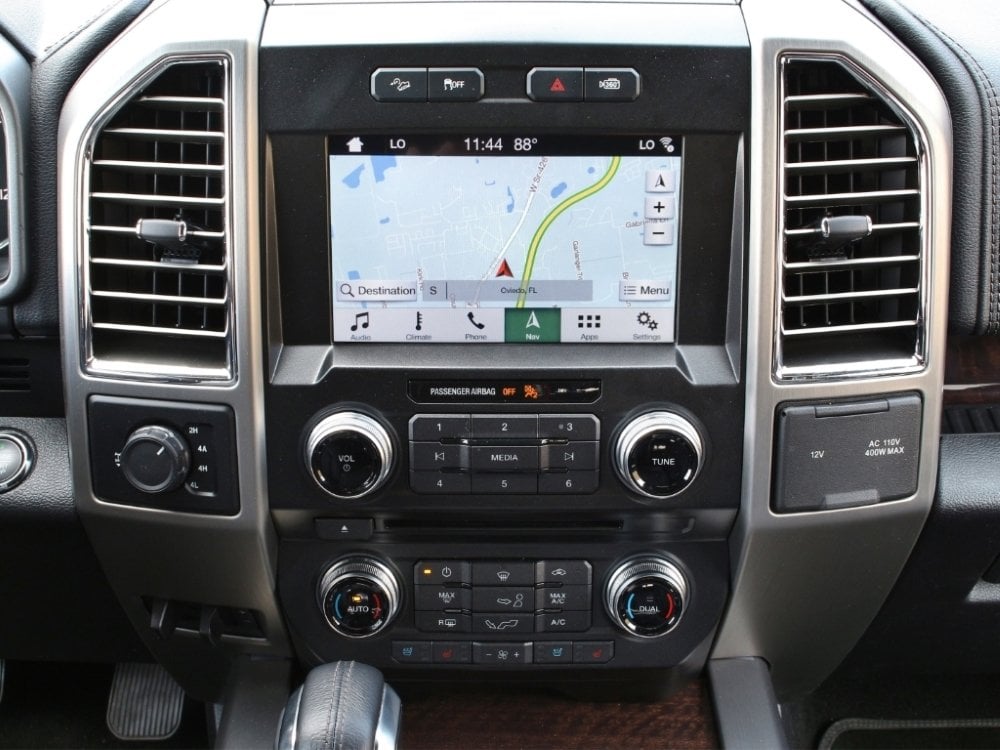
SYNC 3 powers most 2016 to 2019 F-350 trucks and supports both touchscreen and button interfaces. The process varies slightly based on your radio unit type.
Use Touchscreen Phone Button
- Turn on Bluetooth on your phone.
- Press the Phone button on the SYNC screen.
- Tap Add Bluetooth Device.
- Select your phone from the displayed list.
- Find and select SYNC on your phone.
- Confirm the six-digit PIN matches on both screens.
- Approve any follow-up prompts for contacts.
The connection auto-reconnects each time you start the truck.
Use Non-Touchscreen Radio Controls
- Enable Bluetooth and discoverability on your phone.
- Press the Phone button on the radio unit.
- Use seek buttons to select Add Device then press OK.
- Choose Discover other BT Devices and press OK.
- Select SYNC in your phone Bluetooth settings.
- Enter the six-digit PIN shown on the radio screen.
- Press Yes on SYNC and OK on your phone.
Wait for the “Device Added” confirmation before driving.
Pair Legacy MyFord Touch Systems
Older F-350 models from 2010 to 2015 use MyFord Touch or button-controlled interfaces. These systems rely heavily on physical buttons and voice prompts.
Connect Via MyFord Touch Screen
- Turn on Bluetooth on your device.
- Press Connect or Add a Phone on screen.
- Tap Add Device and select your phone.
- Note the six-digit PIN on the display.
- Select SYNC on your phone and confirm PIN.
- Enter the code if prompted manually.
The system downloads your contact list over the next few minutes.
Connect Via Button Controls
- Enable Bluetooth and discoverability on device.
- Press the Phone button on the interface.
- Navigate to Add Bluetooth Device using seek buttons.
- Press OK then select Find SYNC.
- Write down the six-digit PIN displayed.
- Select SYNC on phone and enter the PIN.
- Press Enter to complete the process.
Voice dialing functions once the contact sync finishes.
Connect Microsoft Sync 2008 to 2009 Models

Early F-350 models use the original Microsoft Sync system with a fixed default PIN. This process differs significantly from newer generations.
Pair Using Default PIN Code
- Press the OK button on steering wheel twice.
- Go to Settings > Bluetooth on your phone.
- Search for devices and select “Sync”.
- Enter the default PIN 422875 when prompted.
- Press OK to confirm as primary phone.
- Wait for the phonebook download to complete.
This specific PIN applies only to 2008 and 2009 models.
Configure Primary Device and Safety Features

Proper post-pairing configuration ensures full functionality of your Bluetooth connection. These settings enable critical safety and convenience features.
Set Primary Device Status
Choose Yes when prompted to set your phone as the Primary Device. This enables automatic reconnection at startup and full voice command access. It also activates 911 Assist emergency calling and complete phonebook syncing.
Enable 911 Assist Emergency Calling
This safety feature uses your phone to contact emergency services if airbags deploy. Select Yes during setup to enable 911 Assist and ensure your phone has signal. It does not work with secondary or non-primary devices.
Stream Music Via Bluetooth Audio
- Press the Media button on your console.
- Select Source > Bluetooth Audio.
- Play music from your phone app.
Use voice commands like “Play artist [Name]” or “Skip track” for hands-free control.
Troubleshoot Bluetooth Connection Failures
Even correct steps sometimes fail due to interference or software glitches. Use these proven fixes to resolve common pairing issues.
Fix Passcode Mismatch Errors
Restart the process from the beginning if PINs do not match. Ensure your phone is not auto-entering an old code. Manually enter the PIN shown on the SYNC screen. Always use 422875 for Microsoft Sync models.
Resolve Device Not Found Issues
Move the vehicle to an open area free of overhead structures. Restart Bluetooth on both devices and reboot your phone. Ensure discoverability is active since it times out quickly. Hold the phone near the center console during pairing.
Bypass Pairing Limit Errors
Ford SYNC supports up to eight paired devices maximum. Go to Settings > Bluetooth > Paired Devices to delete old phones. This clears corrupted profiles and resets the cache for new connections.
Handle Reconnection Failures
Ensure Bluetooth is enabled on your phone before starting the truck. Check that the device is set as primary in settings. Delete and re-pair the phone if automatic connection fails. Some phones disable Bluetooth when battery is below ten percent.
Use Voice Commands for Hands-Free Control
Once paired you can use voice commands for safer driving operations. These features work across all SYNC generations after proper setup.
Make Calls Without Touching Phone
Say “Call [Contact Name]” or “Redial” to initiate calls. Use “Answer call” or “End call” to manage conversations. Press the Phone button to answer or hold it to end calls.
Control Music With Voice
Say “Play artist [Name]” or “Play genre Rock” to start music. Use “Next track” or “Previous track” to navigate playlists. Ensure Bluetooth Audio is selected as your source first.
Final Tips for Reliable Ford F350 Bluetooth Connections
Maintaining a stable Bluetooth connection requires regular maintenance and software updates. Follow these best practices for long-term reliability when you connect Bluetooth to Ford F350 systems.
Update SYNC Software Regularly
Ford releases updates that fix bugs and improve Bluetooth stability. Check for updates at Settings > System > Software Update in your truck. Use the Ford website to download updates via USB if needed.
Restart SYNC When System Freezes
Press and hold the Radio Power button for ten seconds to reboot. Wait for the screen to restart completely before trying again. This clears temporary glitches that cause pairing failures.
Consult Owner Manual for Specifics
Your F-350 manual contains diagrams specific to your exact model year. Visit the Ford owner website to download a free PDF version using your VIN. Contact Ford Support at 1-800-392-3673 for persistent issues.
Frequently Asked Questions About Connecting Bluetooth to Ford F350
What is the default PIN for 2008 Ford F350 Bluetooth?
The default PIN for 2008 and 2009 Microsoft Sync systems is 422875. Newer SYNC generations generate a unique six-digit code on the screen during each pairing attempt.
Why wont my Ford F350 find my phone?
Ensure your phone discoverability is active and the vehicle is in an open area. Restart Bluetooth on both devices and delete old paired devices if the limit is reached.
How many devices can pair to Ford SYNC?
Ford SYNC systems support up to eight paired devices simultaneously. Only one device can be primary but multiple phones can connect for shared use.
How do I reset Bluetooth on Ford F350?
Hold the Radio Power button for ten seconds to restart the SYNC system. Delete your phone from both the vehicle and phone Bluetooth lists before re-pairing.
Can I stream music from iPhone to Ford F350?
Yes select Bluetooth Audio in the Media menu after pairing your iPhone. Use voice commands like “Play artist” to control music hands-free while driving.
Key Takeaways for Connecting Bluetooth to Ford F350
Successfully connecting Bluetooth to your Ford F350 requires identifying your specific SYNC generation first. Follow the exact steps for your model year whether using legacy Microsoft Sync or modern Ford Digital Experience systems.
Always prepare by parking with the engine running and enabling device discoverability. Configure your phone as primary to access safety features like 911 Assist and automatic reconnection.
Update your SYNC software regularly and restart the system if pairing fails. Contact Ford Support or visit a dealer if problems persist after trying these proven troubleshooting steps.


