Your Ford F-150 screen not working can turn a reliable truck into a frustrating experience. Thousands of F-150 owners across model years 2015 to 2025 have faced this exact problem, with the center display going black, freezing on the Ford logo, or refusing to boot entirely. The issue affects every trim from XLT to Platinum, including PowerBoost hybrids, pointing to systemic flaws in the SYNC infotainment system rather than isolated defects.
This guide walks you through proven diagnostic steps and fixes, from simple soft resets to hardware replacement options. You’ll learn exactly what’s causing your specific symptom, which repairs you can try at home, and when it’s time to visit a dealer. By the end, you’ll have a clear action plan to restore your screen without wasting time or money.
Decode Your Screen Symptoms
Identifying exactly how your screen fails is the first step toward finding the right fix. Different symptoms point to different root causes, and matching your issue to the correct component saves unnecessary repairs.
Black Screen with Backlight On
You turn on the truck and see a faint glow behind the display, but no image appears. The reverse camera works when shifting to reverse, and audio continues playing through the speakers. Touch controls are completely dead.
This pattern strongly indicates FCDIM failure, especially in 2019 and earlier models. The backlight proves power is reaching the unit, but the display processor isn’t rendering content. The retained reverse camera function is a classic sign the FCDIM has failed while the rest of the system remains functional.
To confirm this diagnosis, check for CAN bus communication using a scan tool. If there’s no signal and voltage is stable at the harness, the FCDIM is likely dead and requires replacement.
Hangs on Ford Logo or Spinning Circle
The screen lights up, shows the Ford logo or a splash screen, then freezes. A spinning circle appears but never completes the boot sequence. Over time, boot success drops from working most of the time to failing more often than not.
This is typically software corruption from a failed OTA update. SYNC 4 models from 2021 to 2025 are especially vulnerable to this issue. Many users report the problem began immediately after a system update interrupted the process.
Try performing a soft reset by holding the volume knob and seek-forward button for 10 to 15 seconds. If it works occasionally, the APIM is struggling with corrupted cache or firmware that may need professional reflash.
No Power, No Backlight, No Response
Complete black screen with no glow whatsoever. The system doesn’t respond to any buttons, and the rearview camera doesn’t display when shifting to reverse. Audio is completely dead.
This points to power loss or APIM failure. Start by checking the fuses in the passenger-side fuse panel under the console. Focus on the 10-amp, 20-amp, 30-amp, and 40-amp circuits that control the infotainment system.
If fuses test good, check for voltage at the infotainment unit itself. No power indicates a wiring or fuse block issue. Power present with no boot suggests a dead APIM requiring replacement.
Perform Immediate Fixes
Before assuming hardware failure, try these proven reset methods. Most transient glitches resolve with one of these approaches, and they’re free to attempt.
Soft Reset Procedure
This is the most effective first-line fix for frozen screens, boot hangs, or CarPlay failure.
- Press and hold the volume knob and the seek-forward button on the steering wheel
- Hold both buttons for 10 to 15 seconds until the screen flickers or goes dark
- Wait 30 to 60 seconds for the system to fully reboot
The soft reset clears temporary software glitches and restarts the APIM, similar to rebooting a smartphone. This method resolves approximately 70% of transient issues. One user reported, “Holding the power and forward seek button fixed my SYNC startup issue.”
Repeat this process up to three times if needed before moving to advanced fixes.
Fuse Removal Reset
If the soft reset fails, try a fuse reset to force a complete power cycle of the infotainment system.
- Open the passenger-side fuse panel located under the floor console
- Locate and remove the 40-amp and 30-amp fuses, followed by the 10-amp fuse
- Wait 5 to 10 seconds with all fuses removed
- Reinsert all fuses in the correct positions
- Restart the truck and test the screen
One user confirmed this fixed the issue in every case where a loose connection was the culprit. This method works faster than disconnecting the battery and often resolves power-related glitches.
Key Cycle Reset
Use this method when the screen hangs after an update or refuses to wake up from sleep.
- Turn off the vehicle completely
- Open and close the driver door to trigger full module shutdown
- Wait 3 to 5 minutes to allow capacitors to fully discharge
- Restart the engine and observe the screen
This gives the APIM time to fully reset its internal state. It’s particularly effective after a failed soft reset or following an OTA update that left the system in an inconsistent state.
Apply Deep Recovery Methods
When basic resets fail, these advanced procedures can recover a system that appears bricked by software corruption.
Hard Reset via Battery Disconnect
For persistent software issues that survive multiple reset attempts, a hard reset clears deep corruption.
- Turn off the truck and ensure all accessories are powered down
- Disconnect the negative terminal from the 12V battery
- Wait 30 to 180 minutes to allow all capacitors to fully discharge
- Optionally, touch the disconnected battery terminals together to drain residual power
- Reconnect the negative terminal securely
- Start the truck and wait for the system to fully boot
For PowerBoost hybrid models, disconnect both the 12V battery and the hybrid battery for a complete system reset. One 2021 F-150 owner reported this method resolved a week-long CarPlay failure that survived multiple soft resets.
This procedure clears cache, resets module memory, and can revive a bricked APIM, but only if the hardware itself remains functional.
Reinstall Correct SYNC Firmware
If the screen failed immediately after an update, you may have installed incorrect firmware or a corrupted version.
You will need a 16GB or larger USB drive formatted as FAT32. Download the correct SYNC version for your specific model year, screen size, and region from the Ford Owner website. Using the wrong version can result in a permanent black screen.
Extract the firmware files to the root of the USB drive and insert it into the vehicle’s USB port. Follow the on-screen prompts to reflash the system.
Critical warnings: Installing the wrong firmware version causes permanent black screen. An interrupted install bricks the APIM with no recovery path. If you’re uncertain about the correct version, visit a dealer for professional reflash using Ford’s FDRS system.
Diagnose Hardware Failures
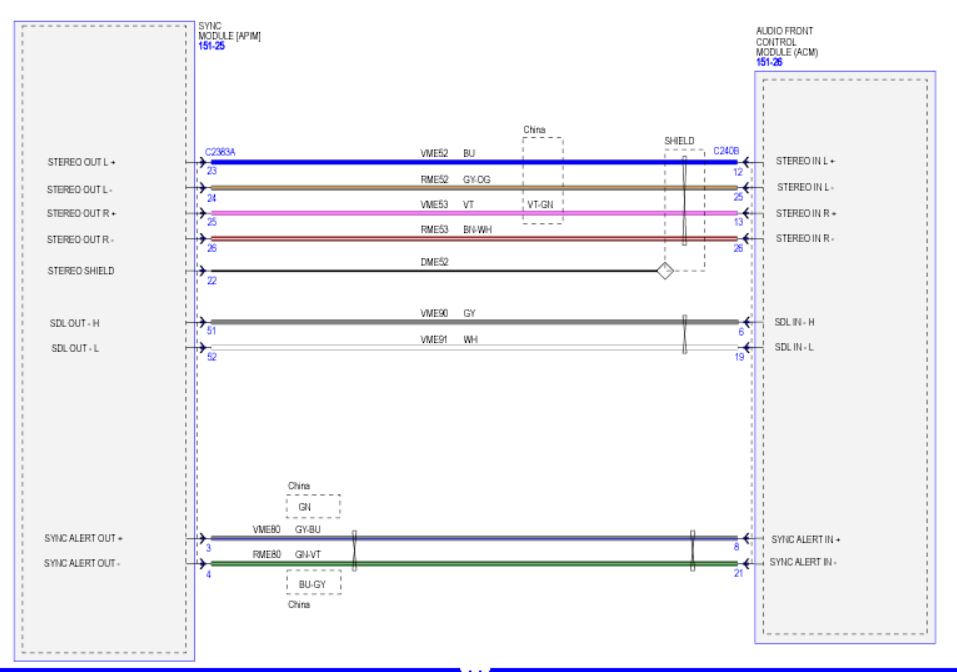
When resets and software fixes don’t resolve the issue, the problem lies in failing hardware components. Understanding which module is defective helps you make informed repair decisions.
Test for APIM Failure
The APIM serves as the central computing unit for the entire infotainment system. When it fails, you lose multiple functions simultaneously.
Watch for these symptoms of APIM failure. Total black screen with no response. No audio or phone connectivity even after resets. Failed OTA updates that never complete. Error codes like U0140 indicating lost communication with the APIM. Climate control functions via screen become non-functional.
Diagnosis requires a scan tool to check for APIM communication on the CAN bus. If no signal registers and fuses test good, the APIM is likely dead.
Replacement costs range from $1,200 to $1,400 at the dealer, or $200 to $600 for used or refurbished units. However, any replacement APIM must be VIN-programmed by a dealer or qualified locksmith. It’s not a simple plug-and-play swap.
Confirm FCDIM Failure
The FCDIM controls only the physical display panel. Its failure produces distinct symptoms that help differentiate it from APIM problems.
FCDIM failure produces black screen with backlight still illuminated. The reverse camera continues functioning normally when shifting to reverse. Audio playback remains uninterrupted. Touch controls become completely unresponsive.
To confirm FCDIM failure, verify that power and ground are present at the infotainment harness. Then check for CAN bus communication. No communication confirms the FCDIM is defective.
Replacement costs range from $800 to $1,500 for the part plus programming. Like the APIM, it requires VIN-specific programming and cannot be swapped without dealer tools.
As mechanic Derrick notes, “After resets fail and power and ground are good, FCDIM is likely defective.”
Address Electrical Causes

Electrical issues often mimic hardware or software failures. Checking these systems first can save unnecessary component replacements.
Check the 12V Battery
A weak or failing 12V battery can prevent the infotainment system from booting properly, even though the battery has enough power to start the engine.
Watch for these signs of battery-related issues. The screen works after a jump-start. Failures are intermittent and unpredictable. The system returns to normal operation after battery replacement.
Low voltage disrupts the APIM’s boot sequence, causing symptoms identical to hardware failure. Test battery voltage with a multimeter. Replace the battery if resting voltage measures below 12.4 volts.
Inspect Fuse Block Connections
Loose or corroded fuse connections can cut power to the infotainment system intermittently, creating frustrating diagnostic challenges.
Focus your inspection on these locations. The passenger-side fuse panel under the floor console contains the primary infotainment fuses. The engine compartment fuse box houses high-amp circuits. Fuse numbers 57 or 89 often control infotainment functions, though this varies by model year.
To test, remove the 20-amp fuse while the truck is running. If the screen stays lit but the radio dies, power is reaching the display, pointing to a software or FCDIM issue rather than a power supply problem.
Tighten any loose fuses and clean corroded contacts with electrical contact cleaner. One user reported that reseating fuses resolved their intermittent failure completely.
Prevent Future Failures
Taking precautions during updates and performing routine maintenance significantly reduces the risk of screen failures returning.
Follow Safe Update Practices
OTA and USB updates carry significant risk. Following proper procedures prevents most update-related failures.
Always verify the firmware matches your exact screen size and model year before downloading. Use a high-quality USB drive from trusted brands like SanDisk or Samsung, 16GB or larger. Format the drive as FAT32 before copying files. Keep the truck running or connected to a battery maintainer during the entire update process. Never interrupt the installation once it begins. Confirm the file checksum if the download provides one.
One user permanently bricked their system by installing an 8-inch screen update on a 4-inch display. This damage is irreversible without dealer tools.
Perform Weekly Soft Resets
Preventing cache buildup and software lag takes just a few seconds per week.
Once a week, hold the volume knob and seek-forward button for 10 to 15 seconds to clear temporary files and reset the user interface. This simple habit prevents boot hangs, especially in SYNC 4 models with slower startup times.
Avoid Navigation at Startup
If your truck hangs on the spinning circle, don’t leave navigation active when shutting down.
Before turning off the truck, switch from Navigation to Audio or Bluetooth mode. This reduces boot-time load and prevents the freeze-on-startup issue that many SYNC 4 owners experience.
Know When to See a Dealer
Some situations require professional diagnosis and repair. Recognizing when to stop troubleshooting and seek help prevents further damage.
Get Professional Diagnosis If
Schedule dealer service immediately if soft and hard resets both fail completely. Seek help if there’s no screen response whatsoever, including no logo or backlight. A scan tool showing U0140 or B15xx error codes confirms module communication loss. If the issue began immediately after an OTA update, professional reflash is likely needed. When the reverse camera works but the display remains dead, hardware replacement is probably necessary.
Dealers use FDRS or IDS tools to reprogram APIM and FCDIM modules, reflash firmware, activate new modules, and apply Vehicle Security Access authentication. These capabilities aren’t available through home diagnosis.
Request Goodwill Assistance
Even if your F-150 is out of warranty, ask about customer goodwill coverage when discussing repair options.
One owner received 80% of repair costs covered despite being at 60,000 miles, suggesting Ford informally acknowledges this as a systemic issue. When contacting the dealer, state clearly: “This is a known issue across multiple model years. I’d appreciate any assistance to resolve this.”
Consider Replacement Options
When hardware replacement becomes necessary, understanding your options helps control costs.
Used or Refurbished APIM
If dealer pricing of $1,400 feels prohibitive, used or refurbished APIM units offer significant savings.
However, understand these caveats. Any replacement unit must be VIN-programmed by a dealer or automotive locksmith. It’s not plug-and-play. Ensure the unit matches your SYNC version exactly.
This approach saves hundreds of dollars, though you’ll still pay $150 to $300 for programming services.
Avoid Aftermarket Radios
Third-party head units might seem like a simple solution, but they create problems.
You may lose factory integration including backup camera compatibility and steering wheel controls. CAN bus errors can trigger dashboard warning lights. The installation might void remaining warranty coverage.
Stick with OEM components unless you’re prepared to sacrifice functionality.
Final Action Plan by Symptom
Use this quick reference to match your exact symptom to the right fix on the first attempt.
Black Screen with Backlight On
Start with a soft reset immediately. If that fails, check fuses and test power and ground at the harness. If those check good, professional diagnosis likely reveals FCDIM failure requiring replacement.
Hangs on Ford Logo
Try a soft reset first. Then change the input to Audio before shutting down to reduce boot load. If problems persist, professional APIM reprogramming via FDRS is the next step.
CarPlay or Bluetooth Fails
Attempt a soft reset as the first solution. Next, delete and re-pair your phone, then reset SYNC settings through the menu. If nothing works, a factory reset or APIM reflash may be needed.
No Response After Update
Start with a hard reset by disconnecting the battery. If the system returns but fails again, reinstall the correct firmware via USB. Complete failure requires dealer reflash using FDRS tools.
One Specific Number Won’t Dial
Delete the contact and re-enter it using a different name format. If the problem persists with only one number, this may indicate a SYNC 4 parsing bug with no known fix at this time.
Frequently Asked Questions About Ford F-150 Screen Issues
Why does my F-150 screen go black but the backlight stays on?
This specific symptom indicates FCDIM failure. The backlight receives power, but the display processor has failed. The reverse camera typically still works because it operates through a separate pathway. Replacement of the FCDIM module is the only reliable fix.
Can I fix my Ford F-150 screen not working without going to a dealer?
Yes, start with soft resets, fuse checks, and battery disconnects. These methods resolve approximately 70% of cases. However, if hardware failure is confirmed, professional programming with dealer tools becomes necessary for APIM or FCDIM replacement.
How much does Ford F-150 infotainment screen repair cost?
APIM replacement costs $1,200 to $1,400 at the dealer, or $200 to $600 for used units plus $150 to $300 for programming. FCDIM replacement runs $800 to $1,500 including programming. Soft resets and fuse checks are free.
Will Ford cover my screen repair under warranty?
Infotainment defects are typically covered under the 3-year or 36,000-mile bumper-to-bumper warranty. Extended Service Plans may cover repairs after the base warranty expires. Even out of warranty, some owners receive goodwill coverage, so always ask.
Why does my screen work after an update but fail later?
This pattern suggests software instability or corrupted cache. Try a hard reset by disconnecting the battery for 30 minutes. If problems continue, the APIM may have sustained permanent damage from the update process, requiring replacement.
Key Takeaways for Fixing Your Ford F-150 Screen
The Ford F-150 screen not working issue stems from identifiable causes with proven solutions. Start with soft resets and fuse checks, which resolve most transient problems. When hardware failure is confirmed, understand that APIM or FCDIM replacement requires professional VIN programming. Always verify firmware compatibility before updating, and perform weekly soft resets to prevent cache buildup. If out of warranty, request goodwill assistance from Ford, as many owners receive partial cost coverage for this documented issue.
Your next step is to identify your exact symptom from this guide and try the corresponding immediate action. If basic fixes fail within three attempts, schedule professional diagnosis rather than risking further damage through repeated troubleshooting.